StarterTab · Getting started
Set up a start page that works for you.
Follow along with the English Singapore edition. You can try the steps without an account. Select any screenshot to see the controls at full size.
Updated
On this page
1. Choose your country and language
Use the country button at the top right and choose a language under your country. On the website, you can bookmark that edition’s address.
English is available for all six countries. Malaysia also has Malay and Chinese; Singapore has Chinese; Indonesia, the Philippines, Thailand and Vietnam have their local-language editions. Switching language on the same website keeps your browser-local favorites and drafts.
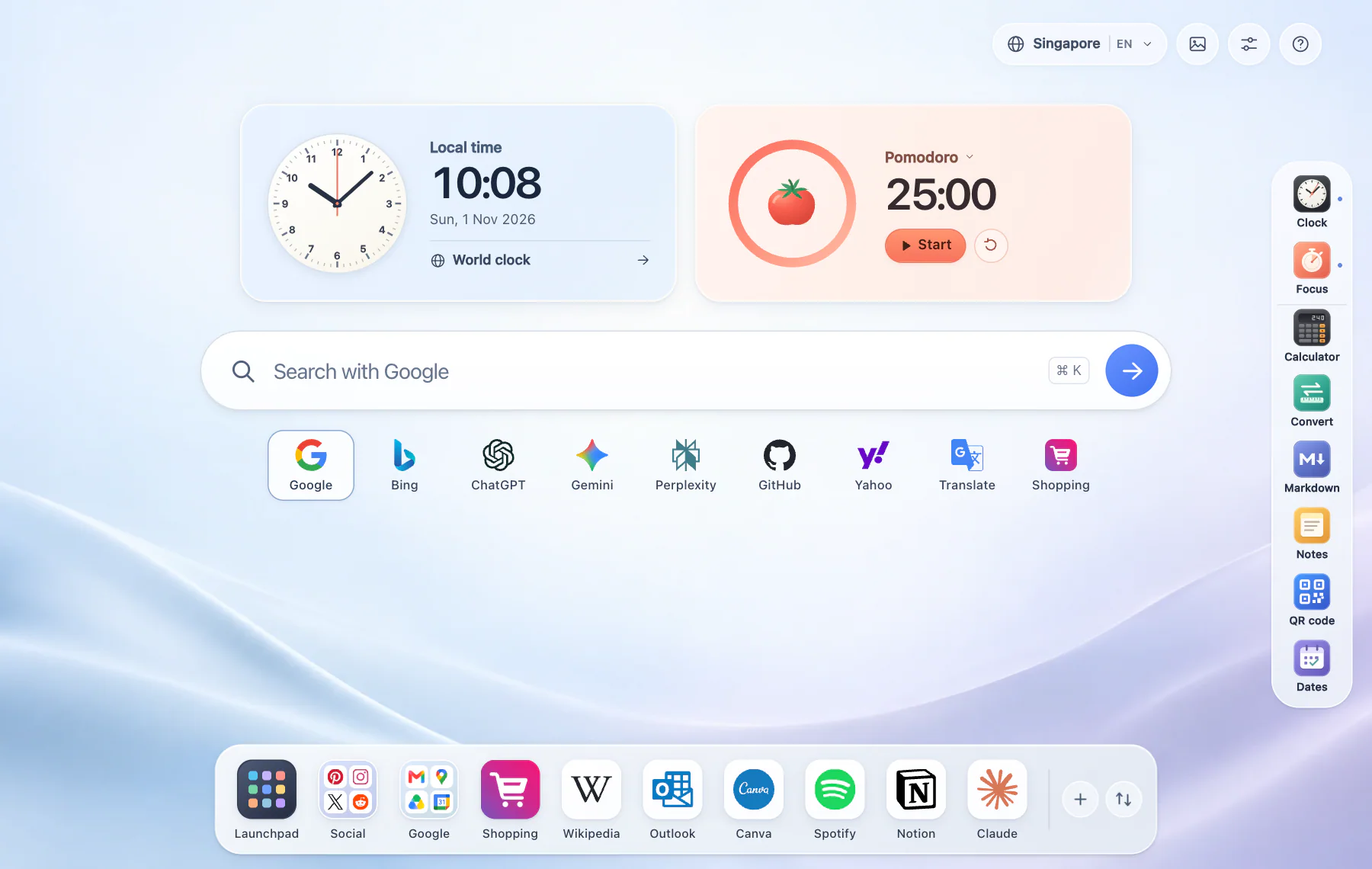
2. Make search your own
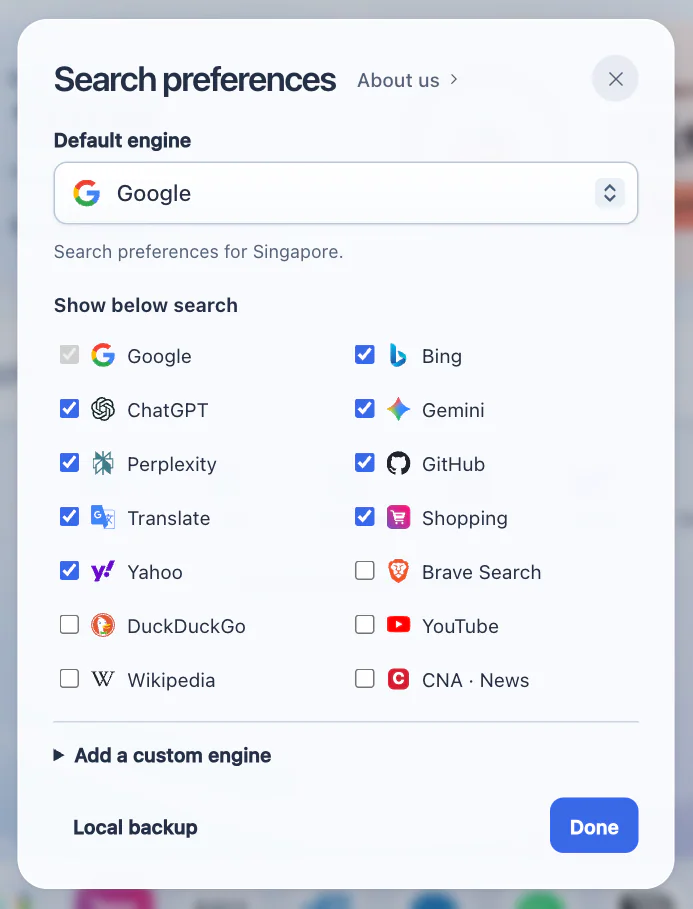
- Open Search preferences with the sliders button. Choose a default engine and check the shortcuts you want to show.
- Click an engine below the search bar before entering a query. Google and Bing search the web; GitHub searches repositories; AI services open their own websites.
- To add a custom engine, enter its name and an HTTP or HTTPS search URL containing {query}, such as https://example.com/search?q={query}. StarterTab inserts your search terms in that position.
For Gemini, StarterTab offers to copy your prompt; open Gemini and paste it into the chat. External services may require their own account. Translate has its own panel for choosing source and target languages.
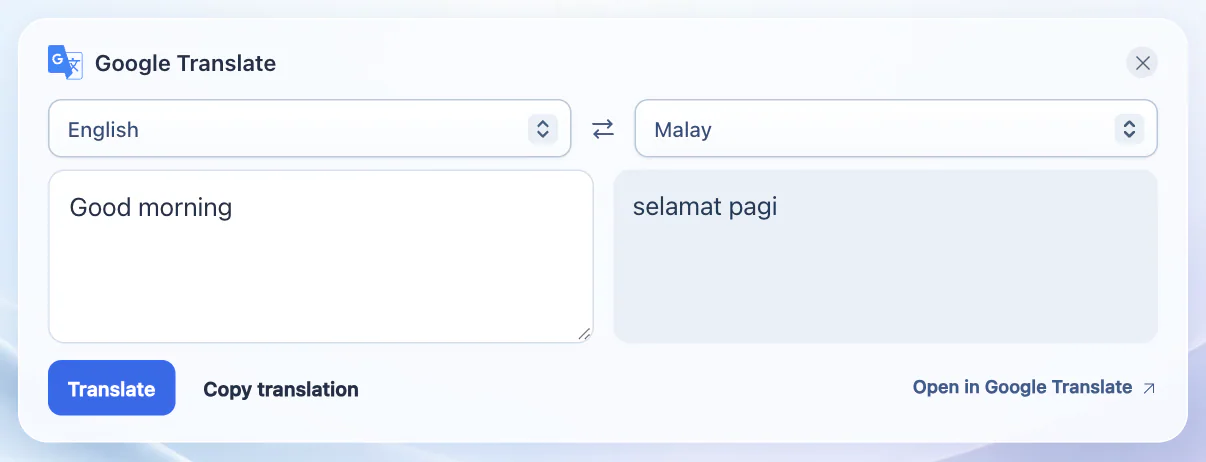
3. Translate a phrase with Google
- Enter Good morning in the search box and select Translate below it. The panel picks up your text. If the shortcut is missing, enable Translate in Search preferences.
- Choose English on the left and Malay on the right. Select Translate to send the phrase to Google. The result appears on the right.
- Select Copy translation to reuse the result. If the panel cannot connect, select Open in Google Translate to take the same text and languages there.
The text and result are not saved as translation history. The panel needs an internet connection to translate.
4. Organize the bottom Dock
- Open Launchpad to browse the directory. Use the pin control on a website to keep it in your Dock.
- Choose + in the Dock to add a site name and address. Select Default or create a category, then choose whether to pin it.
- Drag Dock items to reorder them, or use Arrange favorites and its arrow buttons. On a narrow screen, scroll the Dock sideways.
Social, Google and Shopping group related services. Removing a pin only removes its Dock shortcut; it does not delete the website from the directory.

5. Find a product in your country
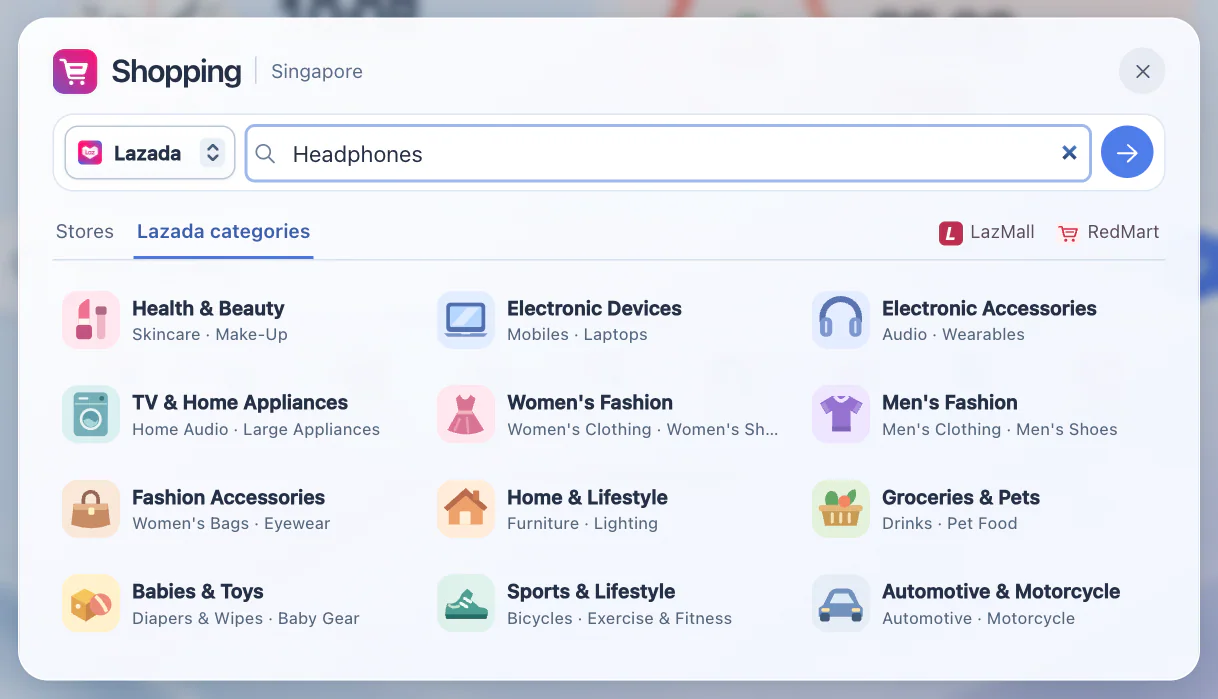
- Open Shopping in the bottom Dock. Check the country beside the folder title to see which storefront you are using.
- For a keyword search, choose Lazada or Shopee, enter Headphones and select the arrow. To browse by department, choose Lazada categories, open a department and follow a subcategory to Lazada.
- Choose Stores to browse other retailers. The Singapore edition also has shortcuts to LazMall and RedMart.
Submitting a product search opens the chosen retailer with your keywords. You see prices, availability and checkout on the retailer’s site.
6. Set a wallpaper and appearance
Open the picture button at the top right. Choose one of the built-in wallpapers or upload a JPG, PNG or WebP under 20 MB. The photo is resized and saved in your browser, not uploaded to StarterTab.
Follow system changes between light and dark with your device. Choose Light or Dark if you want a fixed appearance. Wallpapers and appearance choices apply across language editions on the same website.
7. Open the tools you need
Use the right-hand tool bar; on a phone, open it with the grid button. Clock and Focus toggle widgets on the start page. Calculator, Convert, Markdown, Notes, QR code and Dates open in separate dialogs.
Use the basic or scientific calculator, preview a Markdown file or pasted text, or save a local quick note. Markdown previews are discarded when closed. QR codes are generated on this device and can be saved as PNGs.
8. See what stays in this browser
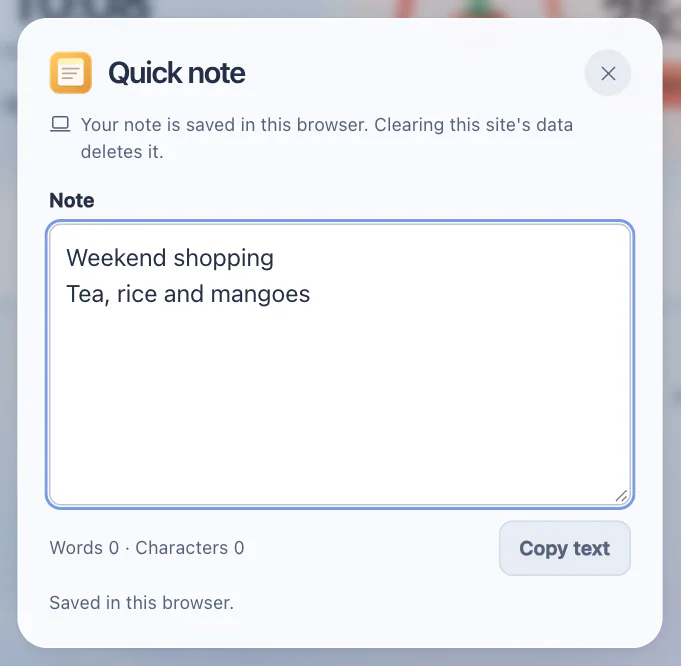
Open Notes on the right and type a shopping list. Close the note and reopen it in the same browser profile to see it again. A Markdown preview closes with its window.
This browser keeps your custom sites, categories, Dock order, search preferences, quick note and uploaded wallpaper on this device. Clearing StarterTab’s site data removes these records. Clearing only cached images and files normally keeps them.
A different browser, device or website address uses separate storage. Private browsing may discard it when the session ends.
9. Back up before clearing site data
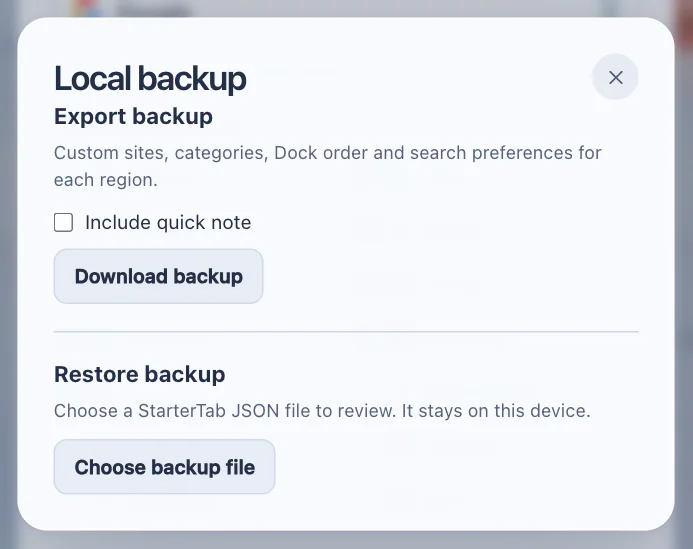
- Open Search preferences, then Local backup. Export saves a JSON file containing your sites, categories, Dock order and regional search and shopping preferences. To take your note, check Include quick note before downloading.
- To restore, choose the backup file, review its contents, then confirm. Keep the original wallpaper photo separately. Uploaded pictures are not included in the JSON file.
10. Keep StarterTab within reach
Bookmark your preferred country and language address, or use your browser settings to make it a homepage or startup page. StarterTab is a website; opening it does not automatically replace the browser's new-tab page.
Homepage, startup and new-tab settings are different controls. For Chrome, use the official browser instructions linked below; the available settings depend on your browser and device.